Is your PS5 stuck with the same look as everyone else’s? It’s time to change that. The PlayStation 5 did not allow custom themes at launch, but new updates let you change one screen’s background. Now you can add a personal touch to your console. This guide shows how to change PS5 background step by step so you can make your PS5 truly yours.
Can You Customize the PS5 Background?
Many gamers wonder how to change the background on PS5 because the PS4 allowed themes and wallpapers. PS5 themes were a beloved feature on PS4, but the PS5 launched without any theme support. The PS5 home screen’s background and music change automatically based on the game selected, with no option to set your own theme.
In other words, PlayStation won’t let you change the main menu background of your PS5 dashboard. However, you can change the background of the PS5’s Welcome Hub screen after a system update. The Welcome Hub (which replaced the old “Explore” tab) is a section of the home screen that you can customize with widgets and a custom background image. When you change this background, it will display whenever you enter the Welcome Hub on your console.
Sony’s official support confirms that you can choose from several pre-made PS5 backgrounds or use your own images saved in the console’s Media Gallery. This is currently the only way to personalize your PS5’s look. Below, we’ll walk you through how to change PS5 background step by step.
Related: PS6 Release Date Surprise
How to Change Your Background on PS5 (Step-by-Step Guide)
Changing your PS5 background is easy and takes only a few minutes. We will use the Welcome Hub customization feature. Follow these steps to set a custom PS5 background:
Step 1: Open the PS5 Welcome Hub
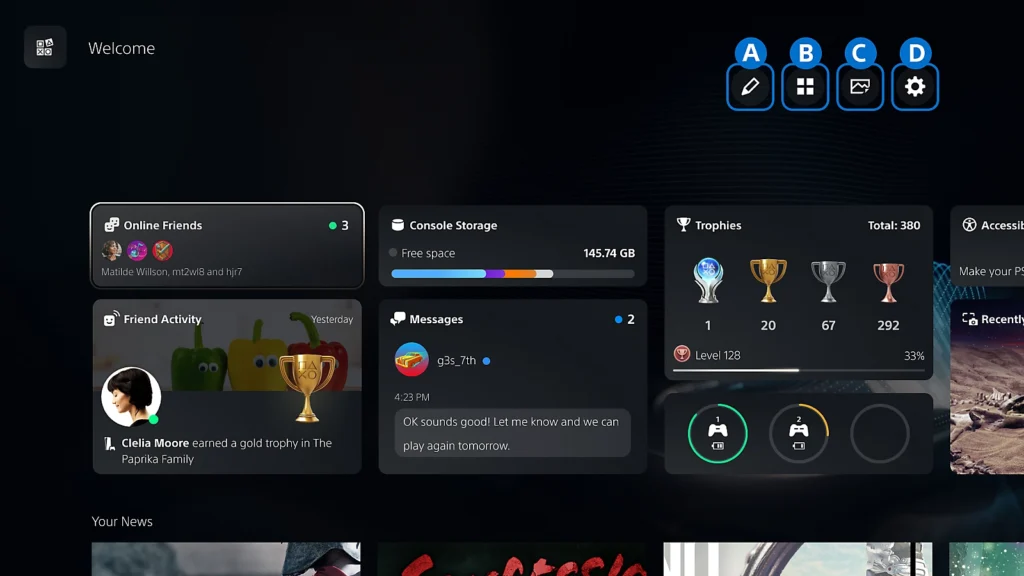
Turn on your PS5 and go to the home screen. Navigate to the Welcome Hub tile (it might be labeled “Welcome” and show some news or stats). Select it to enter the Welcome Hub screen. (The Welcome Hub was added in an update to replace the Explore tab, and it’s where customization is possible.)
Step 2: Find the Change Background Option
Once you’re in the Welcome Hub, press the Triangle button on your controller. This opens the customization menu at the top of the screen. Scroll to the right until you highlight the “Change Background” icon. This icon usually looks like a picture or wallpaper thumbnail.
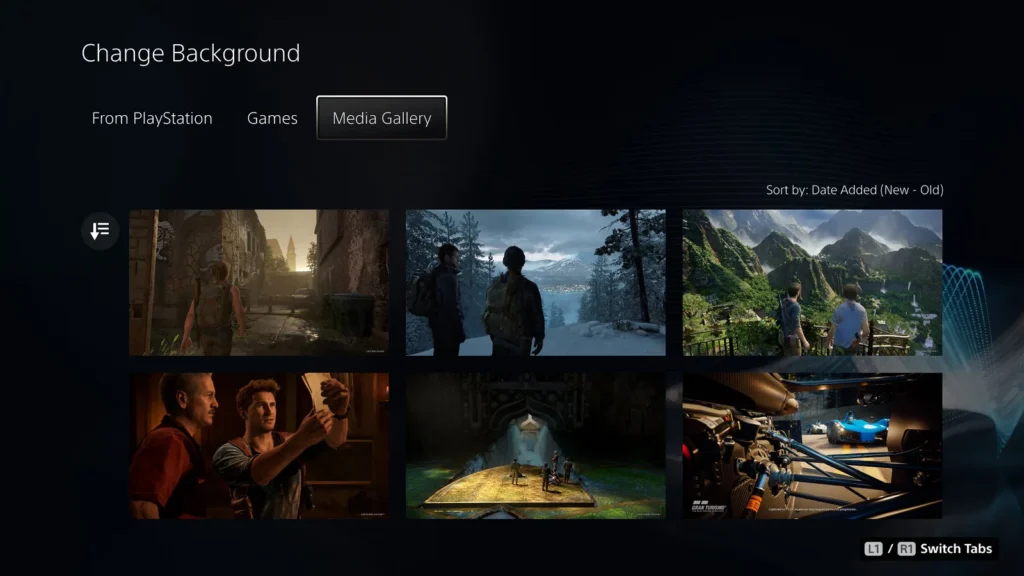
The PS5 “Change Background” menu lets you pick from preset images or your own screenshots as the Welcome Hub background.
Step 3: Choose a Background Category
Press the X button on the “Change Background” icon. A menu will open with different tabs or categories of backgrounds. You’ll typically see three categories:
- From PlayStation: Official PlayStation artwork and graphics.
- From Games: Pre-selected images from various PS5 games (single-player and multiplayer titles).
- Media Gallery: Your personal screenshots and captures stored on the PS5.
Decide which category you want to use. For example, if you want to use one of your own pictures, scroll to Media Gallery. If you prefer a cool game artwork or a PlayStation-themed image, check the other tabs.
Step 4: Select Your Background Image
Browse the images in your chosen category. If you went into “Media Gallery,” you’ll see thumbnails of your game screenshots (and any custom images you’ve added as screenshots). Highlight the image you want as your new background and press X to select it. The system will preview it full-screen in the Welcome Hub.
- Using a preset image: Simply pick the one you like from From PlayStation or From Games.
- Using your own image: Choose it from Media Gallery. (If your desired picture isn’t there yet, see the next section on adding images from your phone or USB.)
Once you select an image, the PS5 will apply it as the Welcome Hub background immediately. You should see your new background in place behind the Welcome Hub widgets and info.
Step 5: Enjoy Your New PS5 Background
Press Circle to exit the menu. Your chosen background will remain set until you change it again. Now, whenever you enter the Welcome Hub on your PS5, you’ll see your custom background image. It adds a personal flair to your console’s look. Keep in mind this background is only visible in the Welcome Hub section; the main menu backdrop will still change with game selection (as designed by Sony).
If you ever want to change it again, just repeat how to change PS5 background via the Welcome Hub. You can swap backgrounds anytime or revert to a PlayStation default image easily.
How to Change Background on PS5 from Phone
What if the image you want to use is on your phone? Many users ask how to change background on PS5 from phone, looking to use their phone’s photos as PS5 wallpapers. While there’s no direct smartphone-to-PS5 wallpaper feature, you can still do it with a simple workaround. The idea is to get the image from your phone into the PS5’s Media Gallery (as a screenshot), then set it as the background. Here are the steps:
Step 1: Transfer an Image from Your Phone to PS5
You have two easy options to transfer a phone picture to your PS5:
- Option A: PlayStation App (Messaging). On your phone, install and open the PlayStation App (linked to the same account as your PS5). Use the App’s messaging feature to send yourself the image. You can do this by creating a group with a friend and sending the image, or by using a second account. Essentially, you are sending a PSN message or chat that contains the picture you want to use.
- Option B: USB Drive. Copy the image from your phone to a USB flash drive. You might email or transfer the photo to a PC first, then put it on a USB drive (formatted as FAT32/exFAT), since PS5 can read USB storage. Plug the USB drive into one of the PS5’s USB ports. On your PS5, open the Media Gallery, and you should see a USB section or the drive name. Navigate to your image file on the USB.
Both options achieve the same result: getting your chosen picture onto the PS5 screen. In Option A, you’ll open the image via the PS5’s Game Base (in the Messages or Parties section). In Option B, you’ll open the image from the USB in Media Gallery.
Step 2: Capture the Image on PS5
Once the image is open on your PS5, make it full-screen if possible. Now press and hold the Create (Share) button on your DualSense controller to take a screenshot. The PS5 will capture whatever is on the screen – which is your desired image. This saved screenshot is now in the PS5 Media Gallery. Essentially, you’ve tricked the system by turning your photo into a screenshot. (You cannot directly import image files into PS5 storage, but viewing and screenshotting them is a clever workaround.)
If you used the PS App method, you might notice the image sometimes doesn’t open fully (it may appear with a chat UI around it). If so, you can still screenshot and later use the Media Gallery’s edit tool to crop it to just the image. Some users report cropping the screenshot to remove borders for a cleaner look. This step is optional, but it can help your final background look perfect.
Step 3: Set the Screenshot as Your PS5 Background
Now that the image from your phone is saved as a screenshot, you can set it as the background. Go back to the Welcome Hub and open Change Background (follow Step 1 – 4 from the previous section). In the Media Gallery tab, find the screenshot you just captured – it should be the last item if it’s your newest capture. Select it and apply it as your background.
That’s it! You’ve successfully changed your PS5 background to a custom image from your phone. Whenever you wonder how to change my background on PS5 to a personal photo, just remember this trick. It works for any picture: family photos, game artwork, or wallpapers downloaded online. As long as you can view it on your PS5 (via USB or the PS App), you can screenshot it and use it.
Tip: The PS5 outputs a 16:9 ratio (up to 4K resolution), so for best results use an image with similar dimensions to avoid stretching or black bars.
(By using these methods, players have effectively added their own wallpapers to PS5. It’s a clever solution until Sony possibly introduces official theme support in the future.)
PS5 Themes and the Animated Theme PS5 Update
You might be curious about full PS5 themes or dynamic backgrounds. As mentioned, the PS5 doesn’t support traditional themes like the PS4 did. There is no theme store or system-wide custom wallpaper setting beyond the Welcome Hub. Many PS5 owners miss the PS4’s dynamic themes and hope Sony will bring them back. Sony has gradually added some personalization in system updates, but it’s limited.
Notably, in late 2025 Sony released an update that fans dubbed the “animated theme PS5 update.” It introduced an animated background for the Welcome Hub that changes with the seasons of the year. For example, during autumn the background shows fall leaves gently dropping, and in winter it might show a cozy snowfall. Just in time for the holidays 2025, Sony even added a cozy fireplace animated wallpaper with PlayStation symbols glowing like a warm hearth. This fireplace theme comes with subtle crackling audio of the fire as well, adding a relaxing ASMR touch. These animated backgrounds are free and can be found alongside your other Welcome Hub background choices (Sony usually alerts you when new ones are added).
Despite these additions, you still can’t change the background on the main PS5 home dashboard. The personalized background only appears in the Welcome Hub area. However, Sony is reportedly testing a screensaver-like feature that will fade out the menu icons if you stay idle on the home screen, allowing the background to be more visible. This indicates an ongoing effort to enhance customization.
The Bottom Line
For now, changing your PS5 background means customizing the Welcome Hub with a static image or one of Sony’s new animated wallpapers. It’s a great way to make your console feel a bit more “you.” According to PlayStation’s support, you can use any screenshot in your gallery as a background, so get creative with in-game photos or custom images. While full PS5 themes aren’t here yet, you have some options to spice up your screen.
Bonus Tip: You can also customize your PSN profile’s cover image separately. On your PS5, go to your profile (click your avatar on the home screen) and choose “Customize Profile”. There you can set a cover photo behind your profile — another place to show off a favorite image or trophy screenshot.
Personalizing your PS5 can make the gaming experience more enjoyable. With these steps, you now know how to change the PS5 background to anything you like.
Enjoy your unique setup, and keep an eye out for future updates. Hopefully, Sony will continue to expand personalization features. Happy gaming!